How to create an account?
Last updated: June 13, 2025
Signing Up for your Codesphere account
Welcome to Codesphere! We're excited to get you set up so you can start deploying your applications in record time. This guide will walk you through the simple process of creating your free Codesphere account.
Accessing the Signup page:
To begin click the Try Codesphere button in the top right corner of our homepage, or navigate directly to our signup page in your web browser:
You'll see a page similar to the one below, inviting you to "Deploy in under 5s."
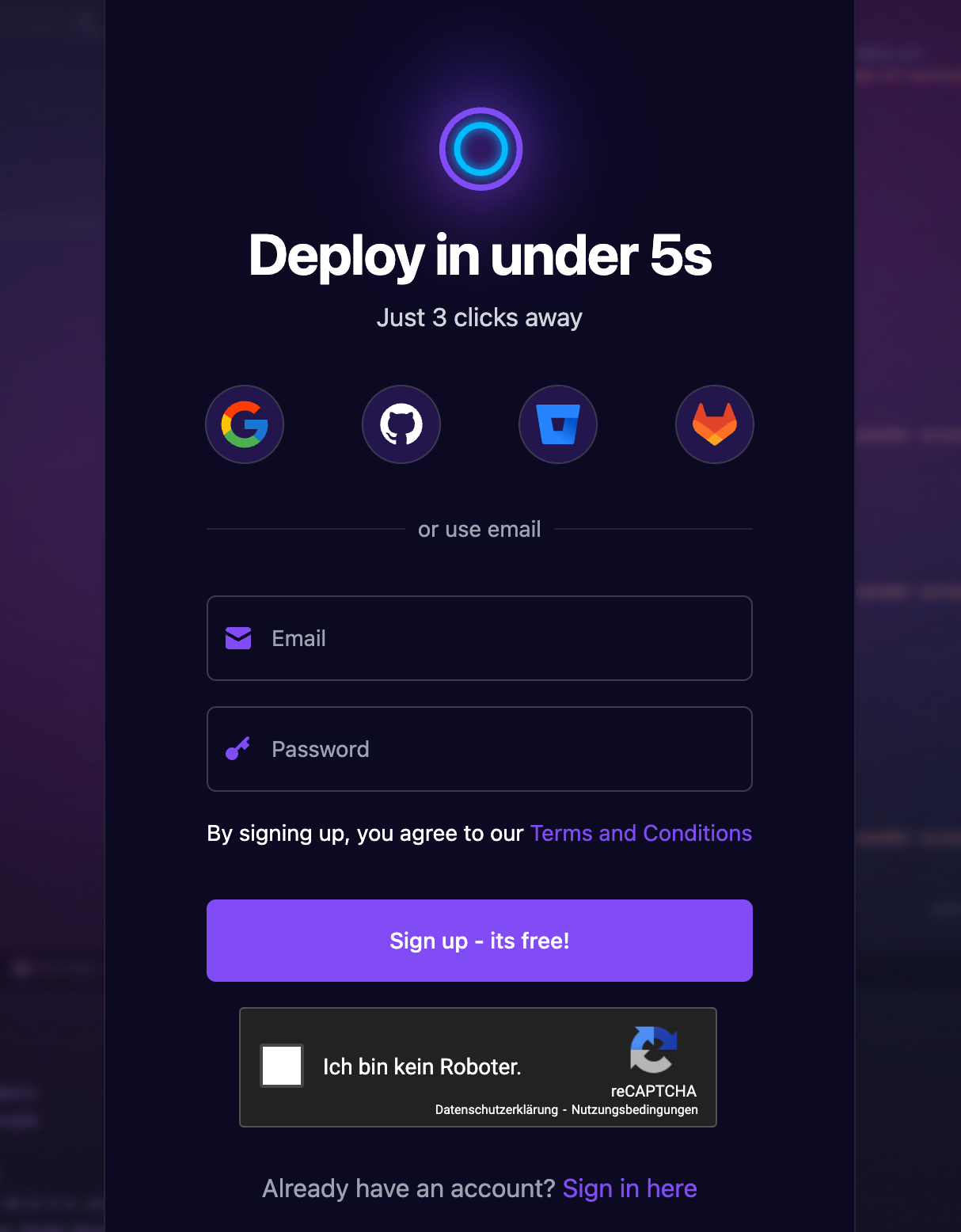
You have two main options to create your Codesphere account:
Sign up using a social account (Recommended for quick setup)
Sign up using your email and password
Let's go through each option:
Option 1: Sign up using a social account
Codesphere allows you to sign up quickly using your existing Google, GitHub, Bitbucket, or GitLab accounts. This is often the fastest way to get started.
Choose your preferred social provider:
On the signup page, click on the icon for Google, GitHub, Bitbucket, or GitLab.
Authorize Codesphere:
You will be redirected to the login page of your chosen provider (e.g., Google, GitHub).
Log in with your credentials for that service if you aren't already.
You'll be asked to authorize Codesphere to access basic information from your account. Review the permissions and click "Authorize" or "Allow."
Account creation and redirect:
Once authorized, you'll typically be redirected back to Codesphere, and your account will be created automatically using the information from your social provider.
Option 2: Sign up using your email and password
If you prefer to create an account with a traditional email and password combination:
Enter your email:
In the field labeled "Email," type your preferred email address. Make sure this is an active email address you have access to, as it will be used for account verification and important communications.
(Generic representation)
Create your password:
In the field labeled "Password," create a strong and unique password for your Codesphere account.
Password Tip: We recommend using a mix of uppercase and lowercase letters, numbers, and symbols to make your password more secure.
(Generic representation)
Agree to Terms and Conditions:
Locate the text "By signing up, you agree to our Terms and Conditions."
It's important to click on the "Terms and Conditions" link to review them. By proceeding, you acknowledge that you accept these terms.
Complete the reCAPTCHA:
You will see a reCAPTCHA checkbox, likely labeled "Ich bin kein Roboter" (I am not a robot) or similar.
Click the checkbox. You may be asked to complete a simple visual puzzle to verify you're human. Follow the on-screen instructions.
Sign up:
Once all fields are completed and the reCAPTCHA is verified, click the purple button labeled "Sign up - its free!"
After signing up: Email verification
Regardless of the method you chose, you will likely need to verify your email address.
Check Your Email Inbox: Open the email account you used to sign up (or the one associated with your social login).
Find the Verification Email: Look for an email from Codesphere (e.g., subject: "Verify Your Codesphere Account" or "Welcome to Codesphere"). If you don't see it, check your spam or junk folder.
Click the Verification Link: Open the email and click the verification link or button inside. This confirms your email address and activates your account.
First login and getting started:
Once your email is verified (or immediately after social signup if no separate verification is needed for that path), you should be able to log in or may already be logged into your new Codesphere dashboard.
Explore the dashboard and consider checking out our "Getting Started" or other tutorials to deploy your first application!
Already have an account?
If you've mistakenly landed on the signup page and already have a Codesphere account, click the "Sign in here" link located at the bottom of the page.
Need help?
If you encounter any issues during the signup process:
Ensure all required fields are correctly filled.
Double-check your internet connection.
If you have trouble with reCAPTCHA, try refreshing the page or using the audio challenge if available.
For persistent issues, please reach out to our support team (support@codesphere.com)